
The cart is where a fashion order is won or lost. It is the last moment to catch the wrong size, the last chance to raise the order value, and the place where a shopper decides whether the delivery date works for them. Selvedge treats the cart as a working tool rather than a list, and every part of it can be turned on or off in Theme settings > Cart.
This guide goes through each part in the order a shopper meets it.
Drawer or page
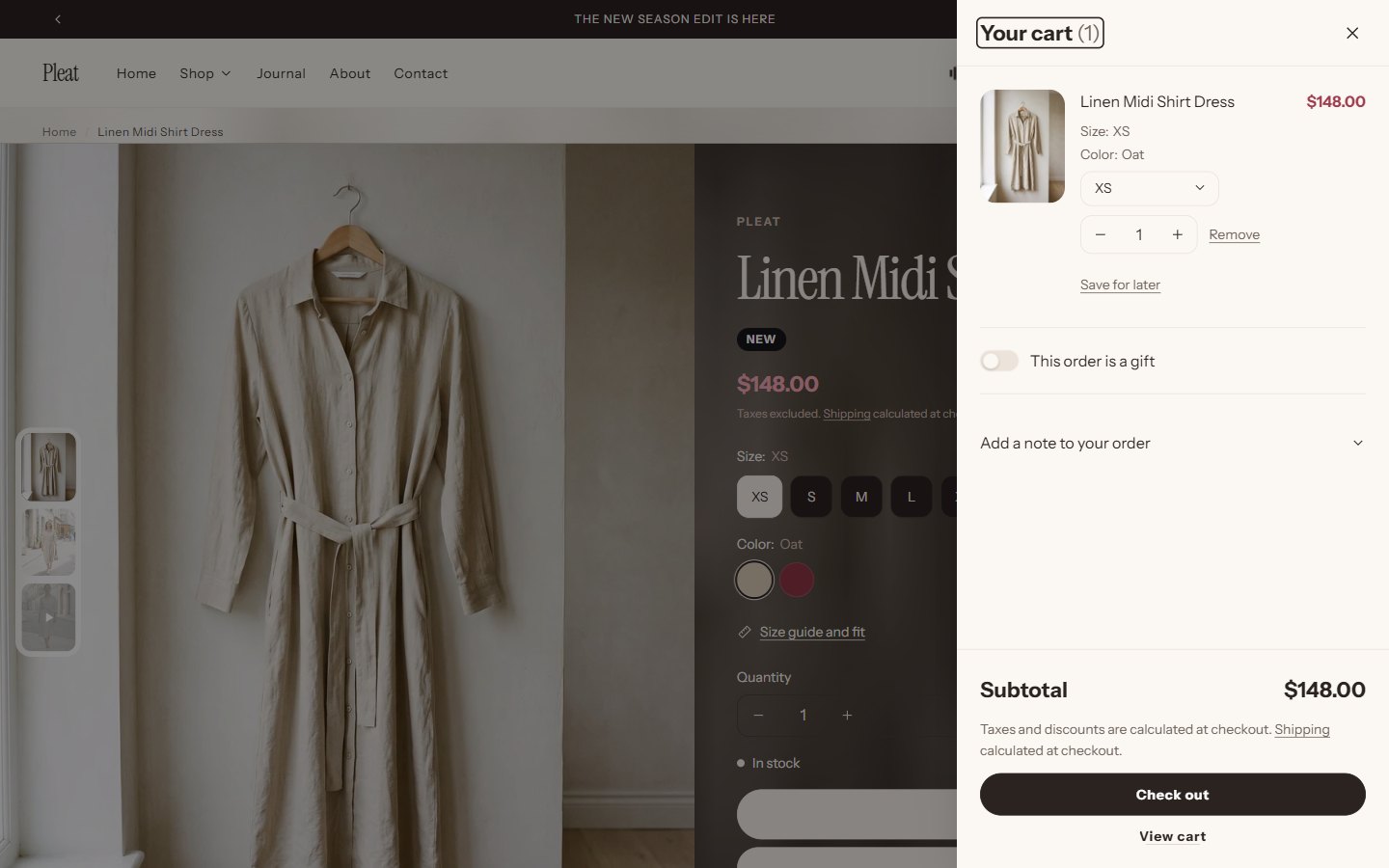
Cart type decides what happens when a product is added:
| Choice | What happens | Best for |
|---|---|---|
| Drawer | The cart slides in from the side, and the shopper stays on the page | Most fashion shops: shoppers keep browsing |
| Page | The shopper goes to the cart page | Shops with long carts, or wholesale |
Both have the same features. The cart page also exists in drawer mode, at /cart, for shoppers who open it directly.
Fly the product into the cart sends a small copy of the photo in an arc to the cart icon in the header before the drawer opens. It confirms the add without words. It is skipped for shoppers who prefer reduced motion.
The rewards bar
A progress bar at the top of the cart: "You're $20 away from free shipping." It moves as items are added, and celebrates when a goal is reached.
Set Free shipping threshold to the order value at which you ship for free, in your store currency. Shopify converts it for each market.
Make your shipping rates match: in SettingsShipping and delivery, add a free rate for orders above the same amount.
For a second goal, set Second reward threshold and Second reward, written to follow "You're $20 away from", for example
a free tote bagor10% off.Create the matching automatic discount in Discounts, with the same minimum order value. The bar shows progress only; the discount does the work at checkout.
Add a Third reward the same way if you want three steps.
Leave the free shipping threshold empty to hide the bar.
Change size in the cart
Let shoppers change size in the cart adds a size menu to each item. It lists every size of the same color; sold-out sizes are shown but cannot be chosen. Choosing another size replaces the item in place, keeping the quantity.
This is the single most useful setting for a clothing shop. A shopper who has second thoughts about a size in the cart can fix it in two taps, instead of ordering, receiving, returning and reordering. It works with the fit system: if they used Find my size, their size is already the one in the cart.
The size menu finds the size option through Theme settings > Size and fit > Size option names, so check your option's name is in that list.
Save for later
Enable save for later adds a Save for later link to each item. Saved items move to a list under the cart, with Move to cart to bring them back. Removing an item shows an Undo link for a few seconds, so a slip of the thumb costs nothing.
Saved items stay on the shopper's own device, with nothing to set up.
Gift options
Enable gift options adds "This order is a gift" to the cart. Ticking it opens a Gift message field; the message is saved on the order, where you see it with the order details.
To charge for gift wrap:
Create a product called Gift wrap, with a price and a photo. Hide it from your collections and search if you like.
Choose it in Gift wrap product.
Shoppers then see Add gift wrap with the gift options; it adds that product to the cart.
Enable cart note gives every order a free-text note, for delivery instructions or special requests.
Delivery estimate
"Order within 3 h 20 min to ship today. Arrives Tue 12 to Thu 14 Nov." Real dates turn "when will it come?" into a reason to buy now.
| Setting | What to enter |
|---|---|
| Show a delivery estimate | On |
| Same-day dispatch cutoff | The hour after which orders ship the next business day, for example 14 |
| Days to prepare an order | Business days between the order and dispatch: 0 if you ship the same day |
| Fastest delivery, in days | Your quickest carrier time, in business days |
| Slowest delivery, in days | Your slowest common carrier time |
Dates count business days only, skip weekends, and use the shopper's time zone. The same estimate appears on product pages through the Delivery and returns block. Match the numbers to your real shipping times: an estimate that is wrong costs more trust than no estimate.
Complete the look
Show complementary products in cart drawer shows pieces that go with what is already in the cart, under the heading "Complete the look", each with quick add. They come from Shopify's free Search & Discovery app: open it, choose Product recommendations, and pick complementary products for your best sellers.
The cart page
The cart page at /cart has everything the drawer has: the rewards bar, size menus, save for later, gift options, the cart note and the delivery estimate, laid out across the full width with an order summary beside the items. Shoppers reach it from View cart in the drawer, from the cart icon when the cart type is Page, and from links in your emails. Customize its sections by choosing Cart in the editor's page selector: you can add sections under the cart, such as recently viewed products or your promises in scrolling text.
Set-ups that work for clothing shops
Three combinations that suit different kinds of fashion business. Pick the one closest to yours and adjust the numbers.
| Shop | Rewards | Other settings |
|---|---|---|
| Everyday basics (tees, knits, socks) | Free shipping a little above one item; a second goal for a multipack discount | Save for later on, gift options off, delivery estimate on |
| Premium and occasion wear | Free shipping on everything (leave the threshold empty and set a free rate in shipping) | Gift options and paid gift wrap on, delivery estimate on, complete the look on |
| Drops and limited runs | One goal only, so the cart stays quick | Save for later off (stock is short), delivery estimate on, fly to cart on |
A few habits that keep the cart honest and effective:
- Keep the copy short. Rewards read "You're $20 away from a free tote bag", so write the reward as a few words, not a sentence.
- Review the rewards each season. When your prices change, move the thresholds with them, and update the matching automatic discounts at the same time.
- Watch your returns reason codes. If "wrong size" falls after you turn on the size menu in the cart, keep it on; it is doing its job.
- Test after every app install. Cart apps sometimes add their own drawer. Two carts on one page confuse shoppers: keep one.
Check it on a phone
Add a product with sizes. Watch the photo fly to the cart and the drawer open.
Change the size in the cart, then remove an item and undo.
Add products until the rewards bar fills.
Tick the gift option, type a message, add gift wrap.
Check the delivery dates against your calendar.
Go to checkout and confirm the free shipping and discounts apply.
Questions merchants ask
The rewards bar says I have unlocked a discount, but checkout does not apply it
The bar shows progress only. Create an automatic discount in Discounts with the same minimum purchase amount.
Can I show the delivery estimate on product pages only?
Yes. Turn it off in the cart settings and keep the Delivery and returns block on the product page; that block has its own Show the delivery estimate switch, and uses the same numbers.
Where do I see the gift message?
On the order in Orders, with the other order details, and on packing slips that print order notes.
Does the cart work with discount codes and Shop Pay?
Yes. Discount codes are entered at checkout, and the dynamic checkout buttons on product pages and the checkout itself are Shopify's own.
Was this guide helpful?
Still need help?Write to us with your shop's address and a screenshot. We reply within two business days, Monday to Friday, usually sooner.
Contact support