
In fashion, the most expensive question is the one a shopper cannot answer: will this fit me? When the answer is a guess, shoppers either leave, or they order two sizes and send one back. Size and fit cause more than half of all clothing returns. Every return costs you the shipping both ways, the time to handle it, and often the sale itself.
Selvedge is built around that question. Instead of one size chart hidden behind a link, it gives shoppers several small, honest answers at the moment they choose a size, and then remembers what they learned. This guide walks through every part of the fit system, what it needs from you, and the order to set it up in.
The idea in one paragraph
You describe your sizes once: a size guide page with a table, and, for each product, how it fits (small, true to size or large). Selvedge turns that into a recommendation ("We suggest M"), shows it beside the size buttons, and offers to remember the shopper's size. From then on, that size is selected for them on every product page, in looks, in quick add, and in a one-tap My size filter on collection pages. If they still pick the wrong one, they can change the size inside the cart, before they pay.
Step 1: describe your sizes
Create a page in Online StorePages called Size guide. Add a table: the size names in the first column (XS, S, M, L, XL, or 36, 38, 40), then one column per body measurement (chest, waist, hips, inside leg). Use the same unit throughout.
Open Theme settings > Size and fit in the theme editor.
Choose the page as the Default size guide page, and set the Default measurement unit to centimeters or inches, whichever your table uses.
Check Size option names. It lists the names your products use for their size option, separated by commas, such as
Size, Taille, Größe, Talla. Every size feature finds the size option through these names, in every language you sell in.Leave Enable find my size and Offer to remember shopper size on.
If some product types are measured differently, a slim jean and a relaxed shirt for example, create one size guide page per type. The next step shows how each product picks its own.
Step 2: the Fit Studio block
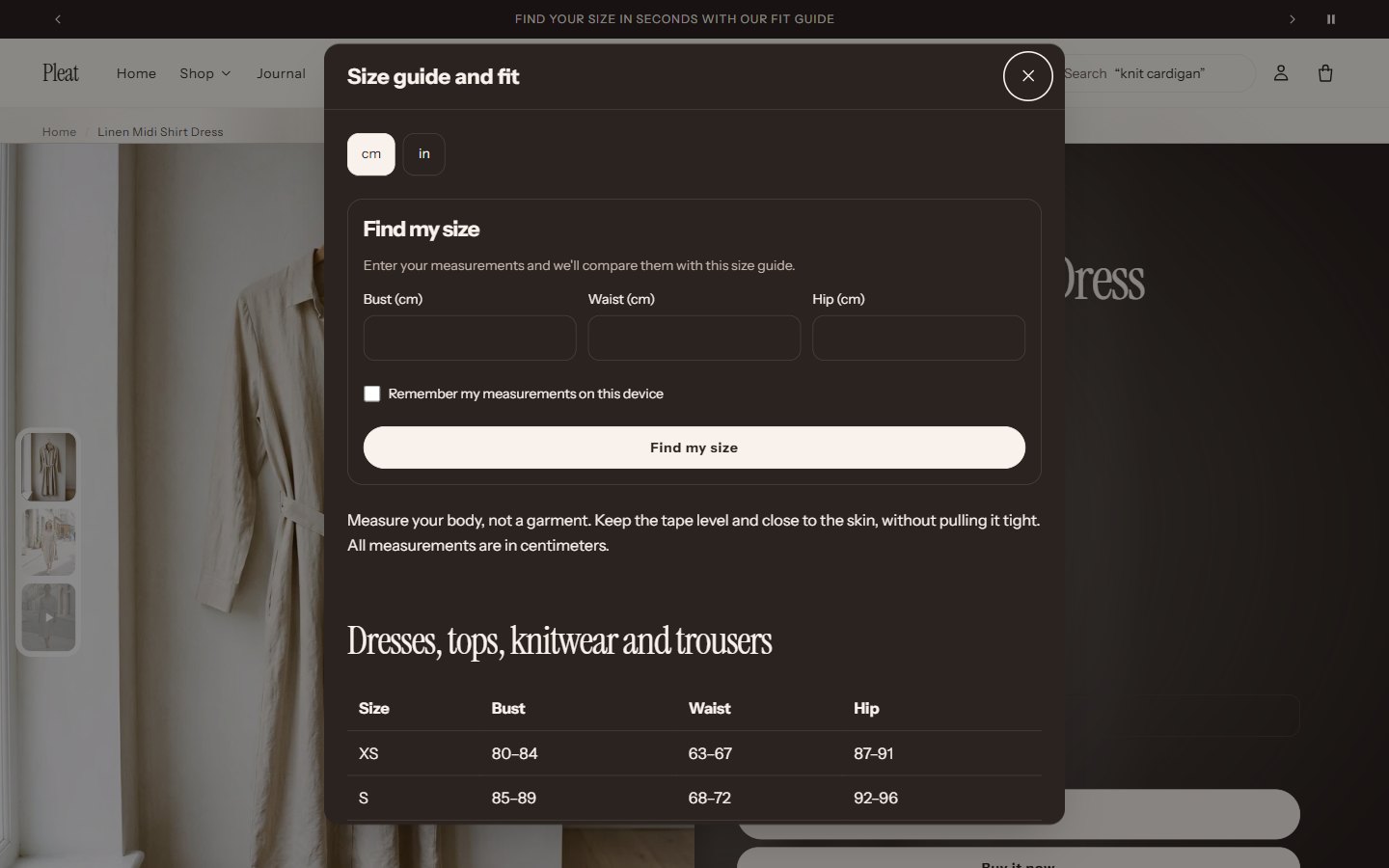
Open a product page in the theme editor and select Product information. The Fit Studio block puts a Size guide and fit link beside the size buttons. It opens a panel with three parts:
| Part | What the shopper sees |
|---|---|
| Find my size | They type up to three measurements from your table (chest, waist and hips, for example) and get a size, with the reason: "Your waist of 76 cm is within size M" |
| Size guide | Your table, in their preferred unit |
| How it fits | Your fit note for this product |
The block's settings:
- Size guide page: leave it empty to use the default. To give each product its own guide, select the dynamic source button beside the setting and connect a page reference metafield. Then choose the right page on each product in the admin.
- Unit used in the size guide table: centimeters or inches, for this table.
- Fit: small, true, or large. When a shopper sits between two sizes, Find my size uses this to suggest the smaller or the larger one. Connect a metafield to set it per product.
- Button label: the words on the link, if you prefer "Find your size" or similar.
Step 3: remembered sizes
When a shopper gets a recommendation or picks a size, Selvedge asks once: "Remember size M for next time?" If they agree:
- their size is selected for them on every product page they open next;
- it is selected on each piece in Try the look and Shop the look;
- quick add opens with it selected;
- the My size shortcut on collection pages filters to it in one tap.
Shoppers who use Find my size can also keep their measurements on the device. On a product with a different size guide, the Size Advisor then says "Your size here: L", worked out from those measurements and that product's own table.
Sizes and measurements are stored only on the shopper's own device, only after they agree, and only when their privacy consent allows it. Nothing is sent to your admin or to any app, and a Forget my size link removes them.
Step 4: the fit details on the product page
Add the blocks that fit your products. Each one answers a different doubt.
Fit scale
A slider from "runs small" to "runs large". Type small, true or large, or a number from 1 to 5. Connect a metafield to set it per product, so one template serves your whole catalog.
Model information
A line such as "Model is 178 cm and wears M." It is the single most useful sentence on a fashion product page, because shoppers compare themselves to the model before anything else. Connect a metafield to write it per product.
Garment measurements
The garment's own measurements, not the body's: length, chest width laid flat, sleeve, inside leg. Create a page with a table (sizes in the first column, one column per measurement) and choose it, or connect a page reference metafield per product. Add How it was measured, such as "Measured flat, with the garment laid out", so the numbers are trusted.
Size conversion
For shops selling abroad. A page with a table: your size names in the first column, then one column per size system (EU, UK, US, JP). Shoppers see their own system beside yours.
Size and color stock
A small table of which sizes are left in which colors. It saves the shopper clicking through every color to find their size, and turns "sold out in my size" into "available in another color".
Ratings and fit
This block shows the star rating from your review app (when it writes Shopify's standard reviews data) and how reviewers found the size. Connect Runs small, True to size and Runs large to number metafields that hold how many reviewers said each; many review apps can fill such metafields. The fit part shows only when there is data.
Step 5: sizes on collection pages
Shoppers who know their size want to see only what is left in it. In the collection page's Product grid:
- turn on Quick refine by size and color: size and color buttons above the grid hide everything that is not available in the choice;
- turn on Show a My size shortcut: one tap for shoppers whose size is remembered.
In Theme settings > Product cards, Show available sizes lists the sizes in stock under each product, so a shopper sees "S M L" before opening the product.
Step 6: a last chance in the cart
Even with all of this, some shoppers pick the wrong size. In Theme settings > Cart, turn on Let shoppers change size in the cart. Every item in the cart drawer and the cart page gets a size menu showing the sizes in stock. Changing it replaces the item in place, before payment, instead of after delivery. See the cart.
Setting it up for a whole catalog
Typing fit details into every product by hand does not scale. Connect the settings to metafields once and fill them in bulk:
| Detail | Metafield type | Connect it to |
|---|---|---|
| Size guide per product type | Page reference | Fit Studio > Size guide page |
| How it fits | Single line text (small, true, large) | Fit Studio > Fit, and Fit scale > Fit |
| Model sentence | Single line text | Model information > Text |
| Garment measurements | Page reference | Garment measurements > Measurements page |
Create the definitions in SettingsCustom dataProducts, connect each block setting with the dynamic source button in the theme editor, then fill the values in the bulk editor or with a CSV import.
Check it works
Open a product on your phone. Select Size guide and fit, enter your own measurements, and check the suggestion makes sense against your table.
Agree to remember the size, then open another product: your size should already be selected.
Open a collection and tap My size.
Add a product, open the cart, and change its size.
Questions merchants ask
Find my size suggests a size I do not sell
The suggestion comes from your table. Check that the size names in the table's first column match the names in your product options exactly, including spaces and letter case.
Can I use inches for some products and centimeters for others?
Yes. The default unit is in Theme settings, and each Fit Studio and Garment measurements block can override it for its own table.
Do I need an app for size recommendations?
No. Find my size compares the shopper's measurements with your own table, inside the theme, with nothing to install or pay for each month.
Was this guide helpful?
Still need help?Write to us with your shop's address and a screenshot. We reply within two business days, Monday to Friday, usually sooner.
Contact support