
Everything you change in Acanthus happens in one place: Shopify's theme editor. You never need to touch code. This guide shows you where everything is, so the rest of the help center makes sense.
Open the editor
In your Shopify admin, go to Online StoreThemes.
Find Acanthus. If it is your live theme it sits at the top under Current theme; a copy you are working on sits under Theme library.
Select Customize. The editor opens with your home page.
Changes you save on your live theme are seen by customers straight away. To try ideas in private, make a copy first and customize the copy.
The seven areas
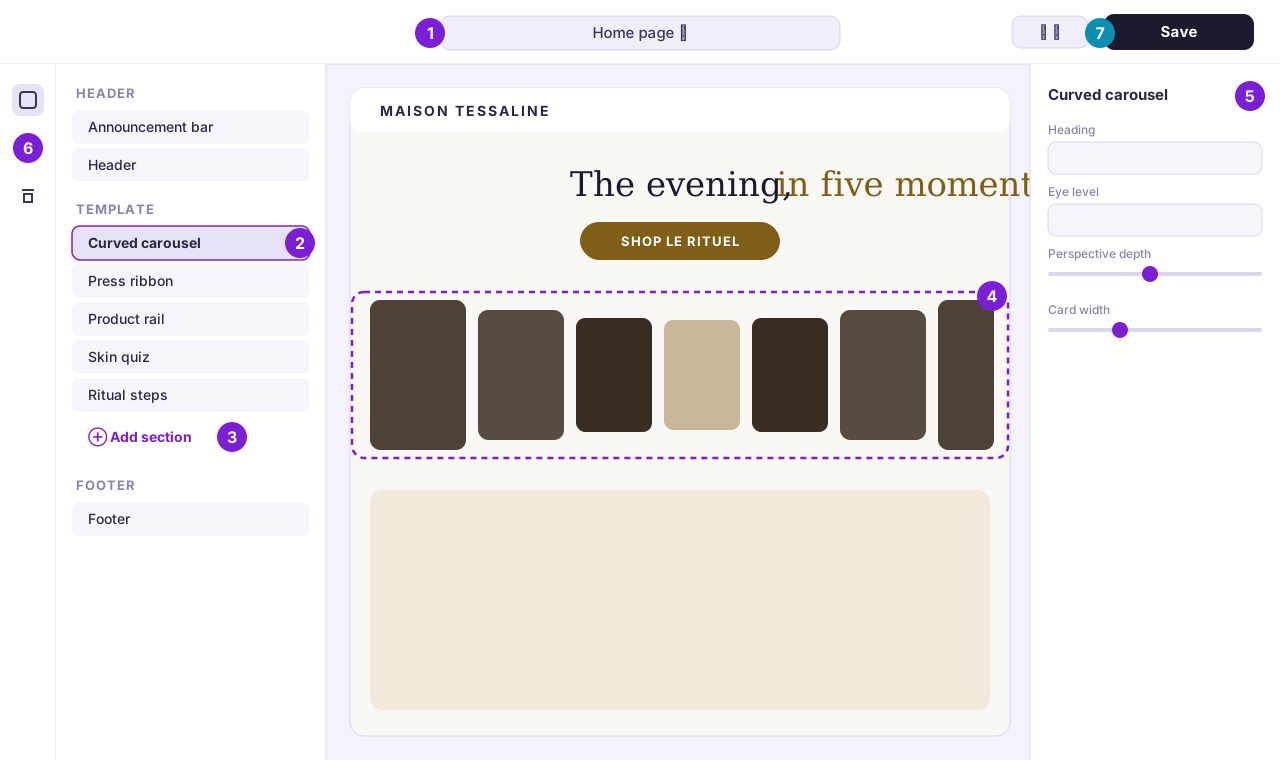
- Page picker. Choose which page you are editing: the home page, a product page, collections, the cart and so on.
- Sections. The building blocks of the page, top to bottom. Select one to change it.
- Add section. Adds a new section to the page.
- Preview. Your shop as customers see it, updated as you type. You can select a section here too.
- Settings. Everything the selected section or block can do: words, pictures, colors, sizes.
- Theme settings. Fonts, colors and other choices that apply to the whole shop.
- Save. Nothing changes for customers until you save.
The five moves you will use every day
Change a section
Select it in the list on the left, or click it in the preview. Its settings open, and every change shows in the preview at once.
Add a section
Select Add section where you want it, then choose from the list. You can search the list by name. Acanthus's sections are grouped by what they do, so heroes sit together, product sections together, and so on.
Move a section
Drag it by the handle (the six dots that appear when you hover) to a new place in the list. On a touch screen, press and hold first.
Hide a section
Hover over it in the list and select the eye icon. A hidden section keeps all its settings, so you can bring it back later. This is the safe way to try a page without something.
Remove a section
Select it, then Remove section at the bottom of its settings. You can undo with Ctrl + Z (⌘ + Z on a Mac) until you save.
Blocks: the parts inside a section
Many sections are made of blocks: the slides of a slideshow, the questions of an FAQ, the cards of a carousel. Select Add block inside a section to add one, drag blocks to reorder them, and select a block to change it. A section shows how many blocks it allows when you reach the limit.
Saving, undoing and publishing
- Save keeps your changes. Until you save, you can leave and nothing changes.
- Undo and redo work for everything you have done since you last saved.
- Publishing is different from saving: it makes a whole theme the one customers see. You only publish once, when a copy is ready. See Install and publish.
I changed something but my shop still looks the same.
You may be looking at a different page from the one you edited, or at your live theme while you edited a copy. Check the page picker at the top, and check which theme you opened. Then refresh the shop with Ctrl + Shift + R.
Can two people edit at the same time?
They can, but the last person to save wins. Agree who is editing, or each work on your own copy.
How many sections can a page have?
Shopify allows up to 25 sections on a page, and up to 50 blocks in each section. A page that long is rarely a good page; most strong home pages have 10 to 18.
Was this guide helpful?
Still need help?Write to us with your shop's address and a screenshot. We reply within two business days, Monday to Friday, usually sooner.
Contact support